Showing posts with label How to Play in GameRanger. Show all posts

Friday, March 1, 2013

Game Ranger

GameRanger – the easiest way to play your friends online.

GameRanger is a free download for Mac and PC that lets you play over 600 games and demos online with friends and opponents worldwide. GameRanger offers features like profiles, friends lists, instant messaging, in-game voice communication, and competitive ladders/rankings/ratings.

Created by Scott Kevill and opened to Mac gaming in 1999, GameRanger is the longest running multiplayer online gaming service on any platform. In 2008, GameRanger expanded into PC gaming receiving widespread enthusiasm and acclaim.

Now I will show you how to play games with your friends using GameRanger. There are 2 links.....(See anyone & Enjoy).

Link No. 1 is description type & Link No. 2  is image type

http://howtoplaygamesinonline.blogspot.com/2013/02/HowtoPlayinGameRanger.html

http://howtoplaygamesinonline.blogspot.com/2013/02/how-to-play-in-gameranger-part-2.html
Read more »

Thursday, February 28, 2013

How to Play in GameRanger (Part-2)


1. Download GameRanger: www.gameranger.com

2. Run file: GameRangerSetup.exe to start the installation: 


3. Check your e-mail and activate your account:


4. Continue the installation:


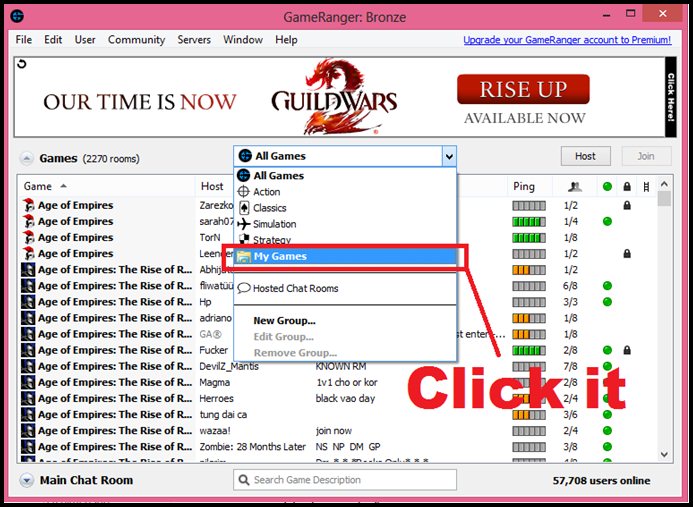
6. Join or host the game:
Read more »

Wednesday, February 27, 2013

How to Play in GameRanger

In this tutorial, I will show you how to play games with your friends using GameRanger.
First of all, you need to download GameRanger from www.gameranger.com/
To see list of the games supported by GameRanger go to www.gameranger.com/games/

Gameranger can be installed on PC, Mac and Cross-platform.

Now to play, you need to follow some steps:

1.      Run the GameRanger Setup application.
Open the file GameRangerSetup.exe and click Install.
If a message appears asking if you are sure you want to run this file, click Run.

2.      Create a new free account. 
GameRanger will prompt you to create a new GameRanger account or use an existing one, and you will need to enter your valid e-mail address. You should use the address your friends are most likely to know.

3.      Activate your account and log in.
Within minutes you should receive a confirmation e-mail to activate your GameRanger account. If it’s not in your inbox, try looking in your junk folder, and mark it as a trusted-sender, or “not spam.” Adding the sender to your address book is also a good idea.

4.      Invite your friends.
Under the Community menu, there are various options to invite your friends to try GameRanger. You can also search to see if they already have GameRanger accounts.

5.      Host or Join a game.
To join an existing game, select a game room from the list and click Join Game. If the game room has a green dot next to it, then it is already playing. Some games do not allow you to join if they have already started. Alternatively, you can create a new game by clicking Host Game.

Read more »